Make An Image A Coloring Page
How to Easily Make An Image A Coloring Page: Your Ultimate Guide
Have you ever found the perfect photo or illustration and thought, "Wow, that would make an incredible coloring page"? Maybe you're planning a birthday party, creating personalized educational materials, or just looking for a unique, relaxing craft. Good news! Converting any standard image into printable line art is much easier than you might think.
Learning how to Make An Image A Coloring Page opens up a whole new world of creative possibilities. Forget searching endlessly for the right design; now you can customize your own. This ultimate guide will walk you through the simplest and most effective methods, whether you prefer professional software, quick online generators, or mobile apps.
Let's dive right into the easy steps needed to transform your favorite pictures into fun, ready-to-color templates!
Why Convert an Image into a Coloring Page?
The appeal of turning a photo or drawing into a coloring page goes far beyond simple novelty. There are practical and emotional benefits that make this process incredibly valuable for parents, teachers, and hobbyists alike.
Personalization is the key benefit. Imagine using a portrait of your child or pet to create a unique coloring activity. This makes the activity much more engaging and meaningful than using a generic store-bought book.
Furthermore, if you are an educator, converting complex diagrams or historical photos into line drawings can help students focus on structure and detail without the distraction of color or texture. It's an innovative way to Make An Image A Coloring Page for educational purposes.
Method 1: Desktop Software (The Professional Way)
If you already have design software like Adobe Photoshop or a free alternative like GIMP, you have the most powerful tools available to create high-quality, crisp line art. These programs give you precise control over line thickness and detail simplification.
Using Adobe Photoshop to Create Line Art
Photoshop provides several powerful filters and adjustments perfect for transforming color photos into black-and-white outlines. This method works best for images that already have defined edges and good contrast.
Follow these steps to efficiently Make An Image A Coloring Page in Photoshop:
- Duplicate the Layer: Always work on a duplicated layer (Ctrl+J or Cmd+J) so you can revert to the original if needed.
- Desaturate the Image: Go to Image > Adjustments > Desaturate (Ctrl+Shift+U). This removes all color, making it grayscale.
- Invert the Colors: Go to Image > Adjustments > Invert (Ctrl+I). This makes the lines white and the background dark, preparing it for the next step.
- Apply the Color Dodge Blend Mode: Change the blend mode of the inverted layer to "Color Dodge." The image will likely turn completely white; don't worry, this is normal.
- Apply Gaussian Blur: Go to Filter > Blur > Gaussian Blur. Slowly increase the radius until the lines begin to appear. The lower the radius, the thinner the line; adjust until you achieve the perfect line art look.
- Adjust Levels: Use the Levels adjustment (Ctrl+L) to refine the darkness and contrast of the lines. Move the black and white sliders closer to the center to darken the lines and clean up the background.
This process gives you sharp, professional-looking line art ready for printing.
GIMP: The Free Alternative
If Photoshop isn't in your budget, GIMP (GNU Image Manipulation Program) is a fantastic, free, open-source tool that can perform the same conversion. The steps are very similar, often utilizing the "Threshold" tool for a highly contrasting result.
In GIMP, after converting to grayscale, you'll typically use the Colors > Threshold menu. Drag the slider until you have a solid black outline on a white background. This is the simplest way to Make An Image A Coloring Page using GIMP, though it requires a relatively simple source image.
Method 2: Free Online Tools (The Quickest Way)
Sometimes you don't need professional precision—you just need a fast conversion without downloading any software. Several excellent web-based tools are dedicated solely to turning photos into coloring pages.
These generators are ideal for beginners and casual users. They handle the complex filtering steps automatically, requiring just a few clicks from you.
Step-by-Step with Online Coloring Page Generators
Popular sites often include settings that let you adjust contrast, line thickness, and detail level before downloading the final product. Here's a general process for using most free online tools:
- Select a Tool: Search for "photo to coloring page converter" or "online sketch filter."
- Upload Your Image: Click the upload button and select the image file you want to convert.
- Configure Settings: Most tools provide sliders for adjusting the "Pencil Sketch" effect or "Line Intensity." Experiment with these to see the results in real-time.
- Preview and Download: Once satisfied, click the "Convert" or "Download" button. Most sites will provide a standard JPG or PDF file ready for printing.
Using these online tools is undoubtedly the fastest way to Make An Image A Coloring Page without any technical knowledge.
Method 3: Mobile Apps for On-The-Go Conversion
If you primarily take photos with your smartphone and want to quickly turn them into a fun activity, there are many mobile apps available on both iOS and Android stores designed for this exact purpose.
These apps often use "pencil sketch" or "cartoon" filters that approximate the coloring page effect. While they might offer less control than desktop software, their convenience is unmatched.
Look for apps that allow you to specifically save the image as a black-and-white outline rather than just applying a stylized filter. This ensures the result is suitable for printing.
Tips for Achieving the Best Coloring Page Results
Not every image is suitable for conversion. A busy photo with cluttered backgrounds or subtle shading will yield a confusing, messy outline. To get a beautiful, clean coloring page, start with the right source material.
Here are a few professional tips to maximize the quality of your finished coloring page:
- Use High Contrast Images: Images where the subject is clearly separated from the background (e.g., a bright object on a dark background) convert much better into clean lines.
- Simplify the Source: Before conversion, crop out unnecessary background elements. Less clutter means cleaner lines for your outline.
- Check Image Resolution: Use high-resolution images. Low-resolution images will look pixelated and the lines will be jagged once converted and printed.
- Manual Cleanup (If possible): If you use Photoshop or GIMP, use the Eraser and Paintbrush tools on the final outline layer to remove tiny speckles or fill in broken lines that the automatic process missed.
Remember, the goal is to create defined areas for coloring, so focus on the main structural lines of the image.
Conclusion: Get Ready to Print and Color!
Transforming your personal photos or favorite drawings into custom coloring pages is a fun, accessible project thanks to modern digital tools. Whether you choose the granular control of desktop software like Photoshop, the speed of online converters, or the convenience of mobile apps, the process to Make An Image A Coloring Page is straightforward.
We hope this guide has inspired you to start creating personalized, unique coloring activities for yourself, your family, or your classroom. Grab your image, follow the steps, and get ready to print—the coloring adventure awaits!
Frequently Asked Questions (FAQ)
- Can I use any photo to make a coloring page?
- While technically you can use any photo, results are best when the source image has high contrast, defined edges, and minimal background clutter. Complex or dark photos often result in a messy outline.
- Is the quality of an online conversion tool good enough for printing?
- Yes, generally, if your original image is high resolution (300 DPI is ideal for printing). Most modern online converters produce high-quality line art suitable for standard home printers.
- What is the easiest way for a complete beginner to convert an image?
- The easiest method is using a free, dedicated online coloring page generator. You simply upload the image and the site does the complex thresholding and filtering automatically.
- What file format should I save my coloring page in?
- A standard JPG or PNG file works fine for digital use, but saving it as a PDF often ensures the best print quality and consistent sizing across different printers.
Make An Image A Coloring Page
Make An Image A Coloring Page Wallpapers
Collection of make an image a coloring page wallpapers for your desktop and mobile devices.

Gorgeous Make An Image A Coloring Page Moment Concept
Immerse yourself in the stunning details of this beautiful make an image a coloring page wallpaper, designed for a captivating visual experience.
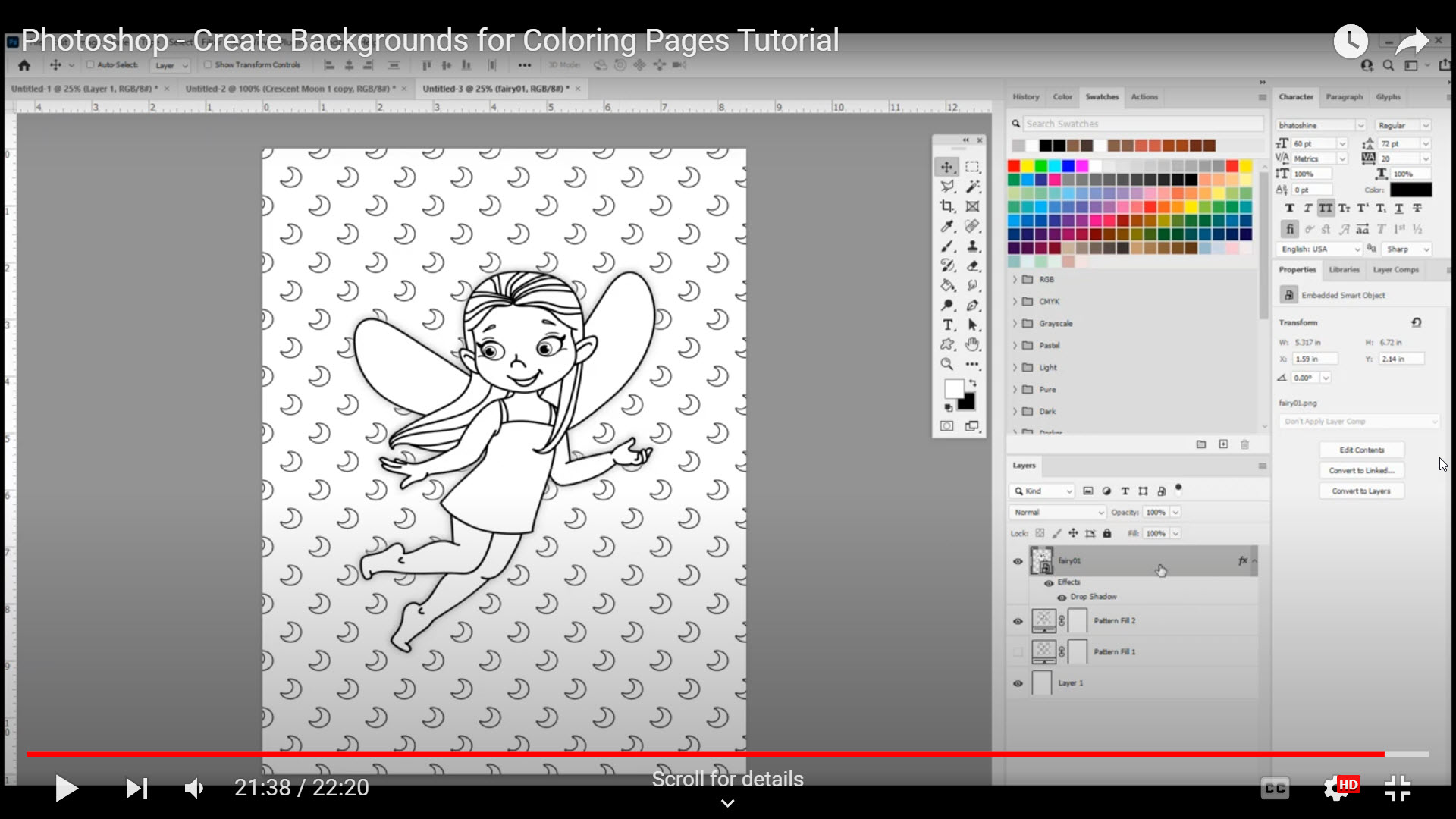
Artistic Make An Image A Coloring Page Picture Nature
Immerse yourself in the stunning details of this beautiful make an image a coloring page wallpaper, designed for a captivating visual experience.
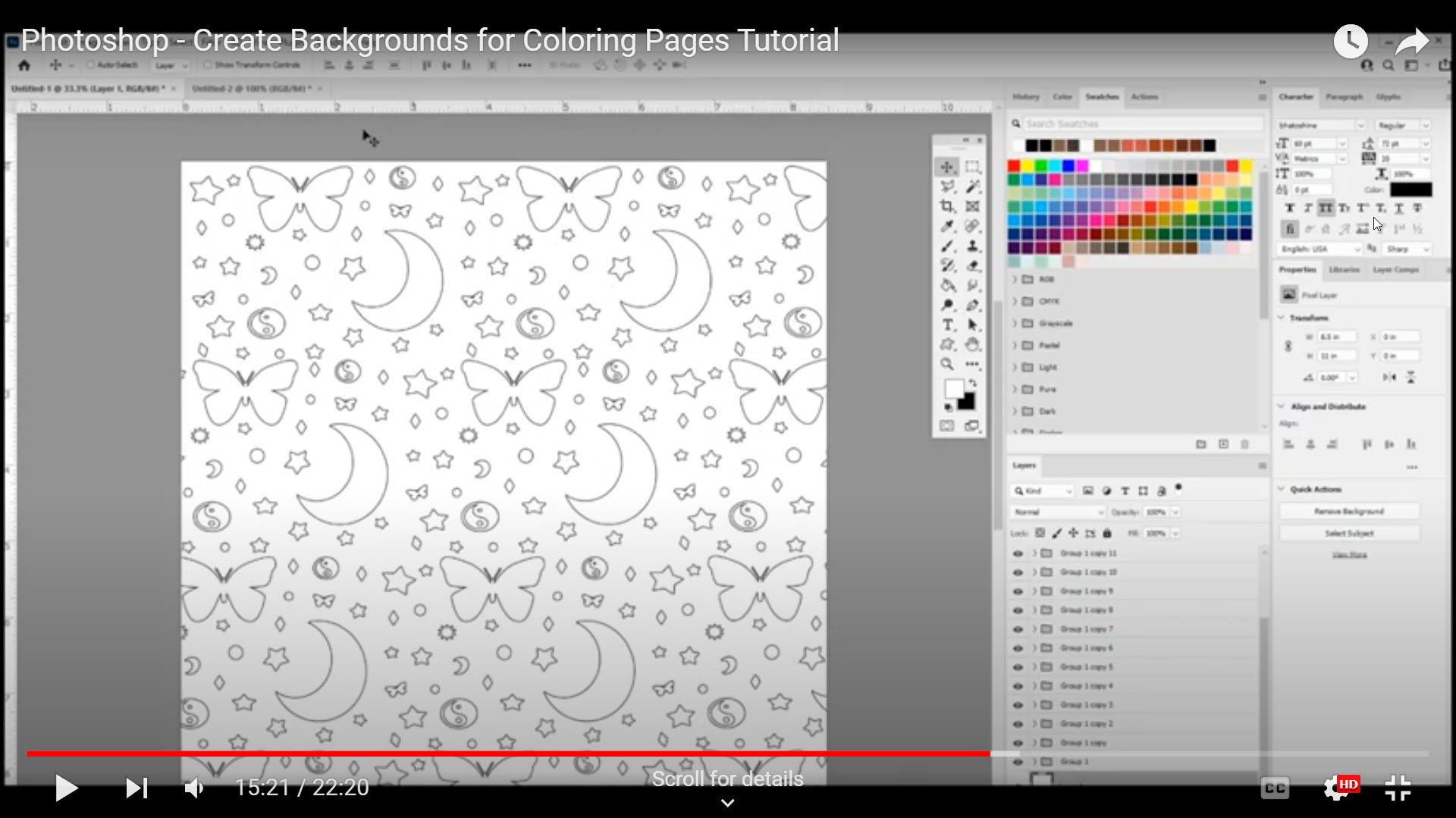
Vibrant Make An Image A Coloring Page Artwork Concept
Explore this high-quality make an image a coloring page image, perfect for enhancing your desktop or mobile wallpaper.

Detailed Make An Image A Coloring Page Photo Art
Discover an amazing make an image a coloring page background image, ideal for personalizing your devices with vibrant colors and intricate designs.

Dynamic Make An Image A Coloring Page Picture Digital Art
This gorgeous make an image a coloring page photo offers a breathtaking view, making it a perfect choice for your next wallpaper.

Serene Make An Image A Coloring Page Design Concept
Discover an amazing make an image a coloring page background image, ideal for personalizing your devices with vibrant colors and intricate designs.
Beautiful Make An Image A Coloring Page Photo Nature
Experience the crisp clarity of this stunning make an image a coloring page image, available in high resolution for all your screens.
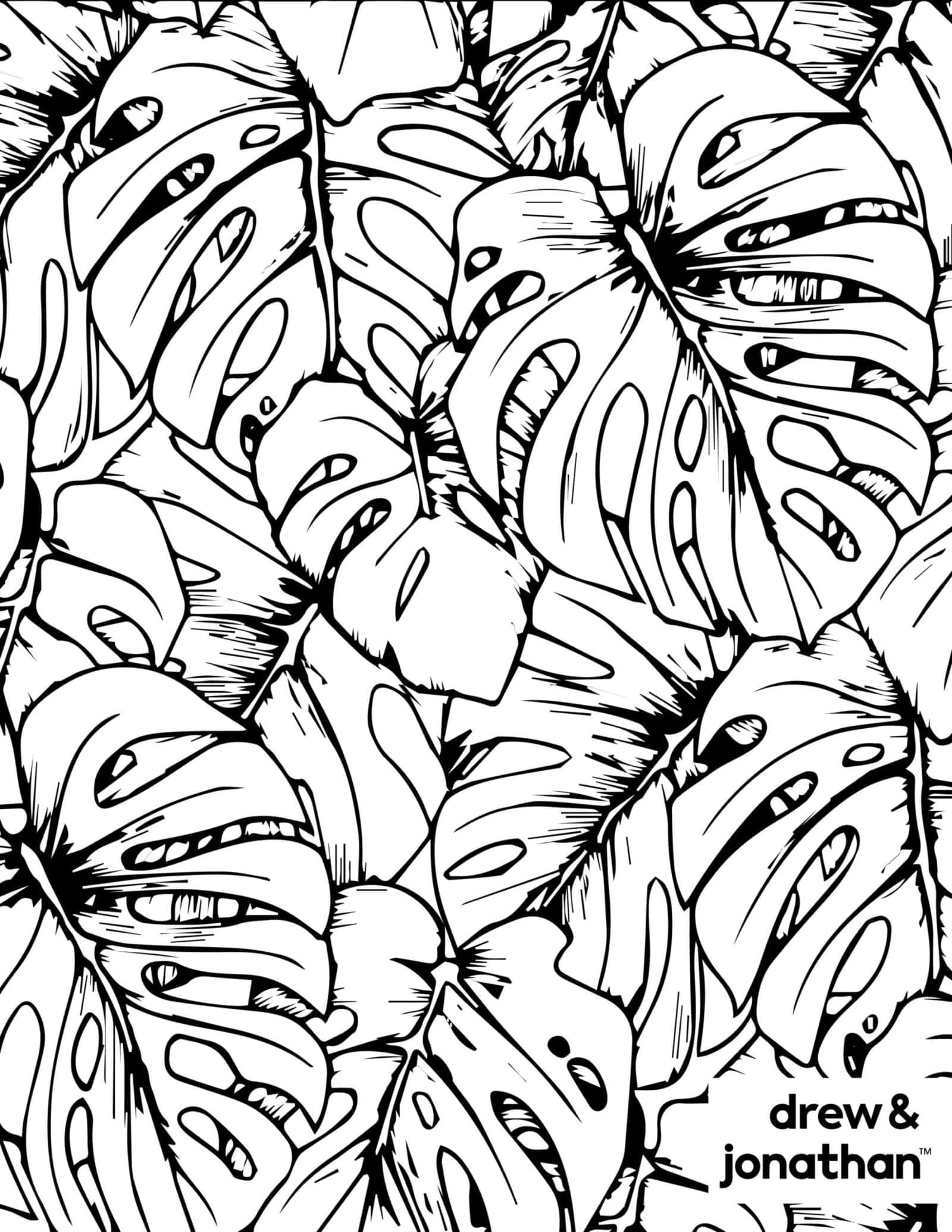
Vibrant Make An Image A Coloring Page Wallpaper for Mobile
Explore this high-quality make an image a coloring page image, perfect for enhancing your desktop or mobile wallpaper.

Exquisite Make An Image A Coloring Page Wallpaper for Your Screen
Find inspiration with this unique make an image a coloring page illustration, crafted to provide a fresh look for your background.
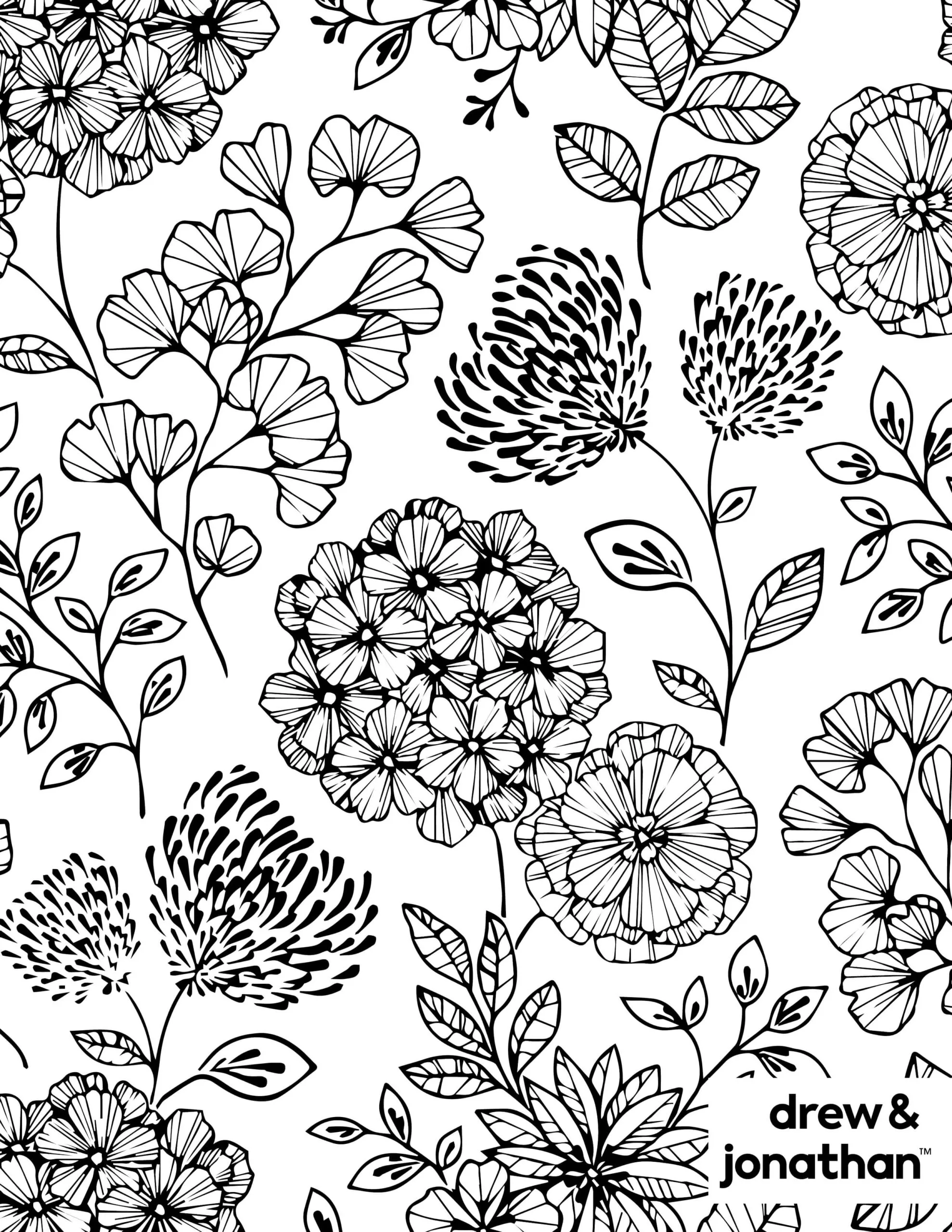
Vivid Make An Image A Coloring Page Moment Nature
Explore this high-quality make an image a coloring page image, perfect for enhancing your desktop or mobile wallpaper.

Vibrant Make An Image A Coloring Page View Art
Transform your screen with this vivid make an image a coloring page artwork, a true masterpiece of digital design.
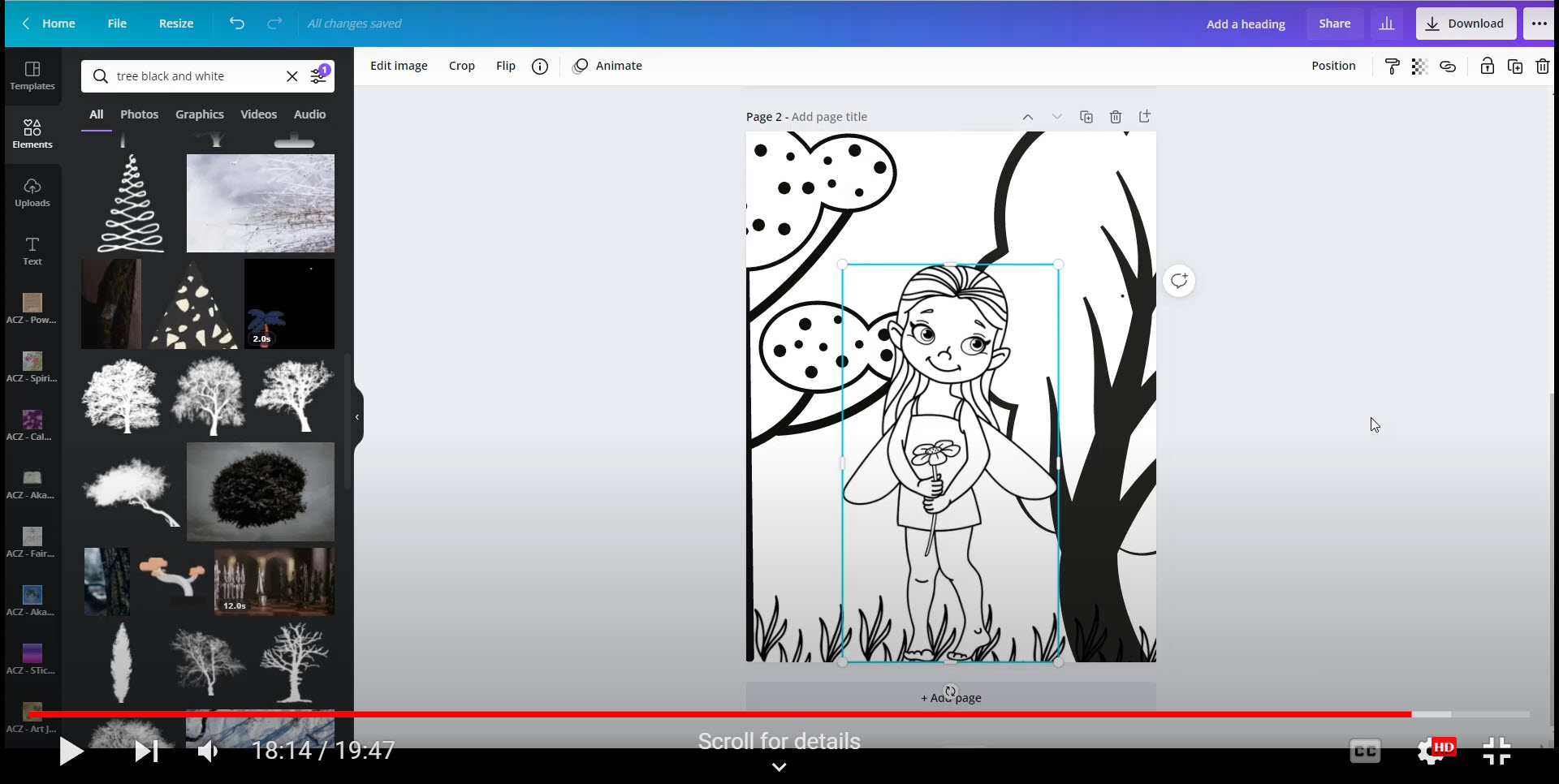
Amazing Make An Image A Coloring Page Background for Your Screen
Experience the crisp clarity of this stunning make an image a coloring page image, available in high resolution for all your screens.

Spectacular Make An Image A Coloring Page Capture for Your Screen
Find inspiration with this unique make an image a coloring page illustration, crafted to provide a fresh look for your background.

Breathtaking Make An Image A Coloring Page Landscape Concept
Experience the crisp clarity of this stunning make an image a coloring page image, available in high resolution for all your screens.

Vibrant Make An Image A Coloring Page Picture Collection
Experience the crisp clarity of this stunning make an image a coloring page image, available in high resolution for all your screens.

Dynamic Make An Image A Coloring Page View Nature
A captivating make an image a coloring page scene that brings tranquility and beauty to any device.
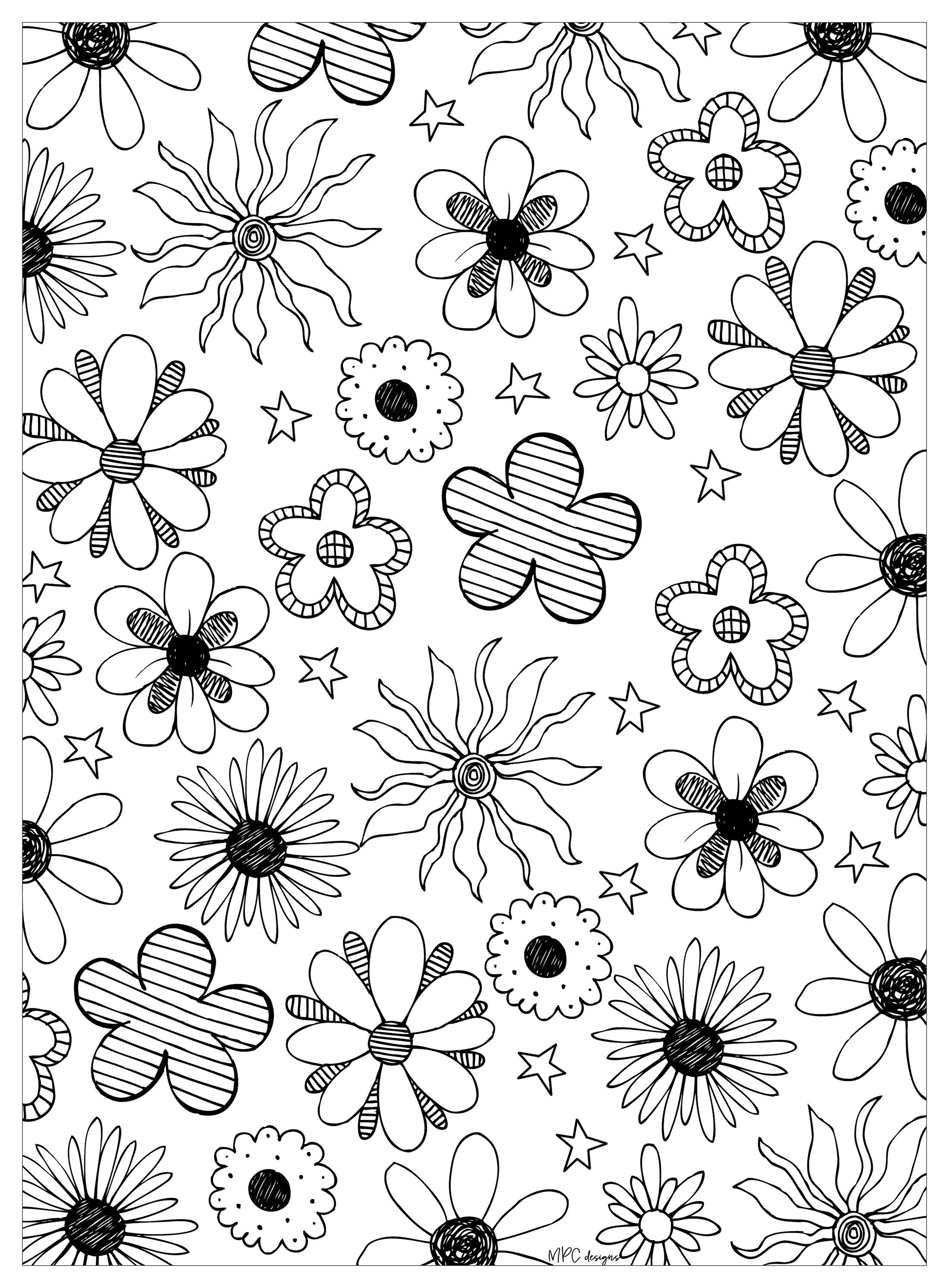
Detailed Make An Image A Coloring Page Scene in HD
Discover an amazing make an image a coloring page background image, ideal for personalizing your devices with vibrant colors and intricate designs.
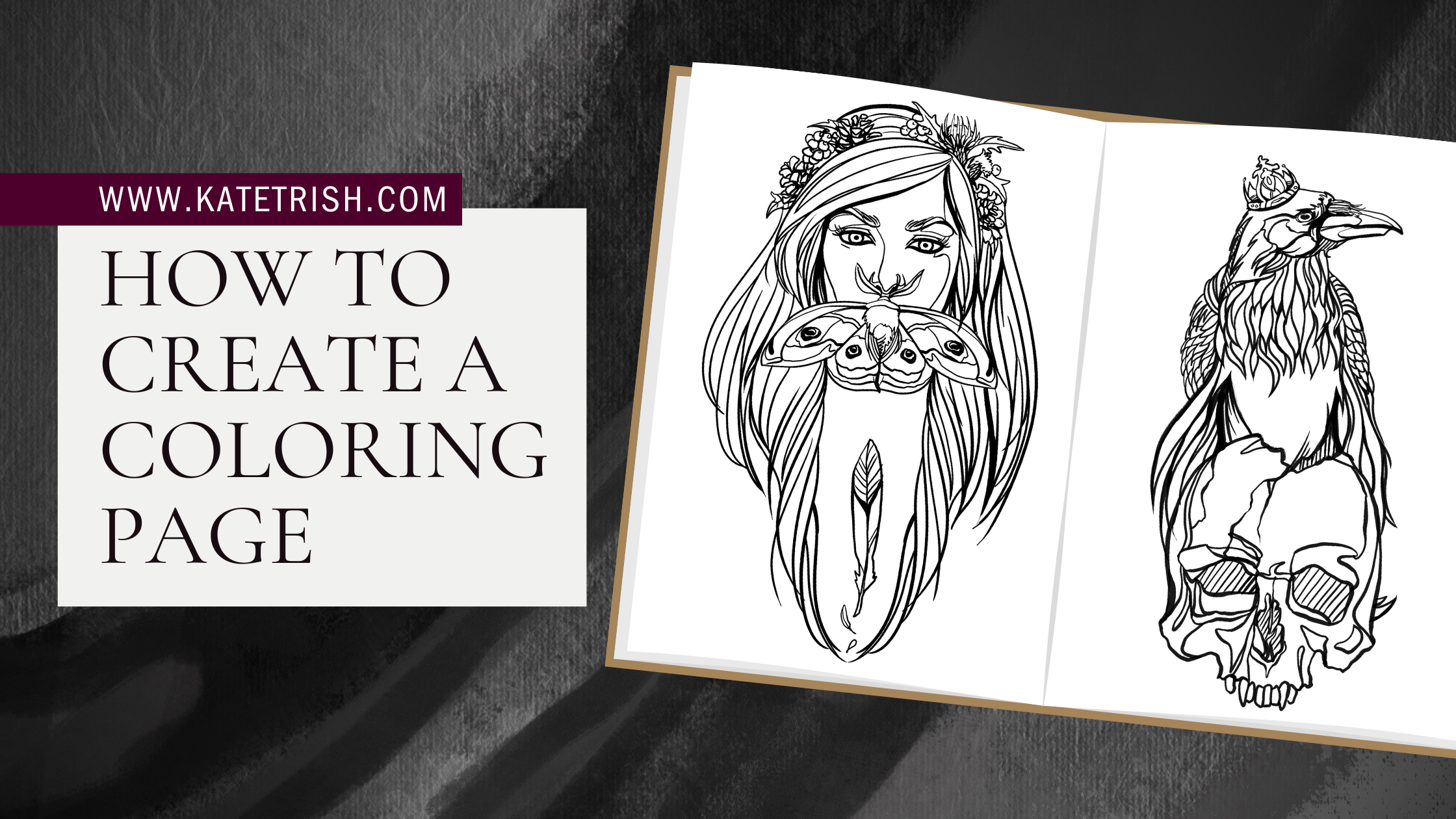
Vivid Make An Image A Coloring Page Image for Your Screen
Experience the crisp clarity of this stunning make an image a coloring page image, available in high resolution for all your screens.
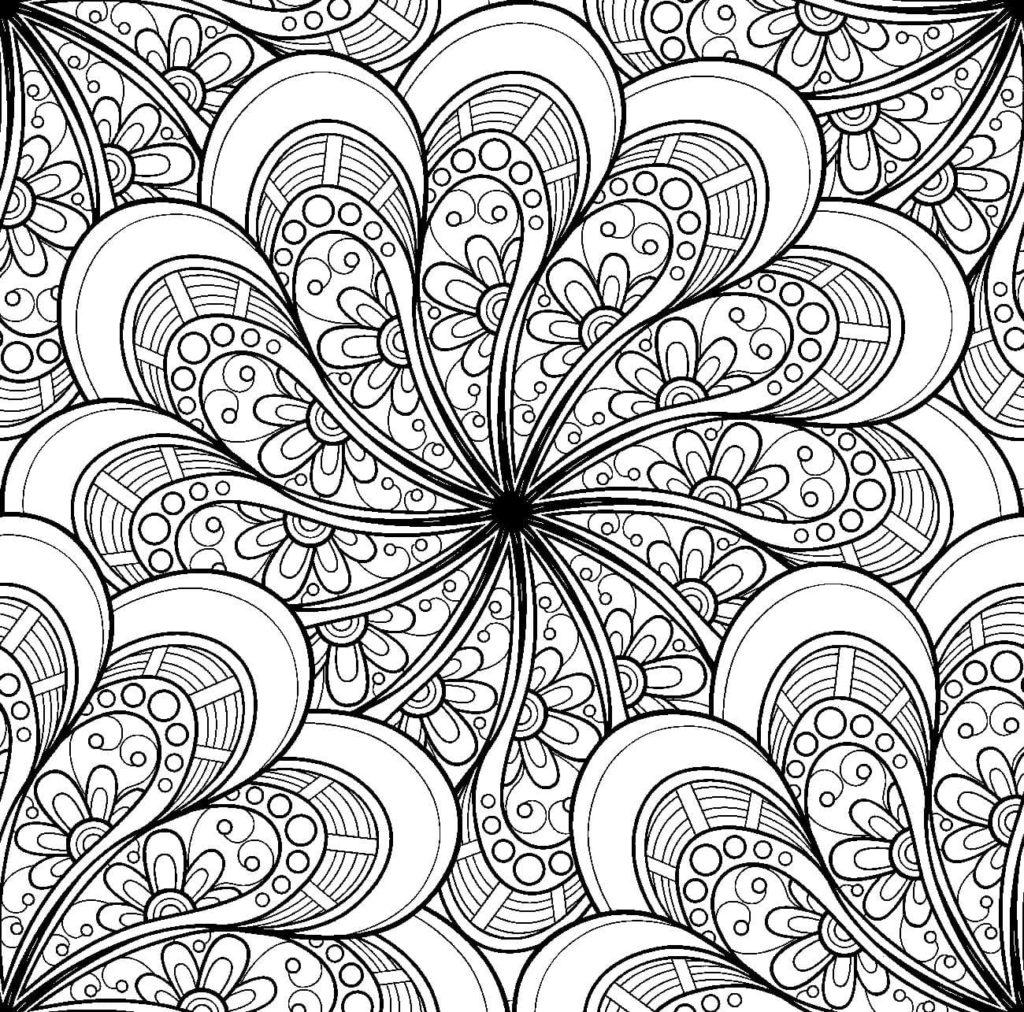
Gorgeous Make An Image A Coloring Page Image Digital Art
A captivating make an image a coloring page scene that brings tranquility and beauty to any device.
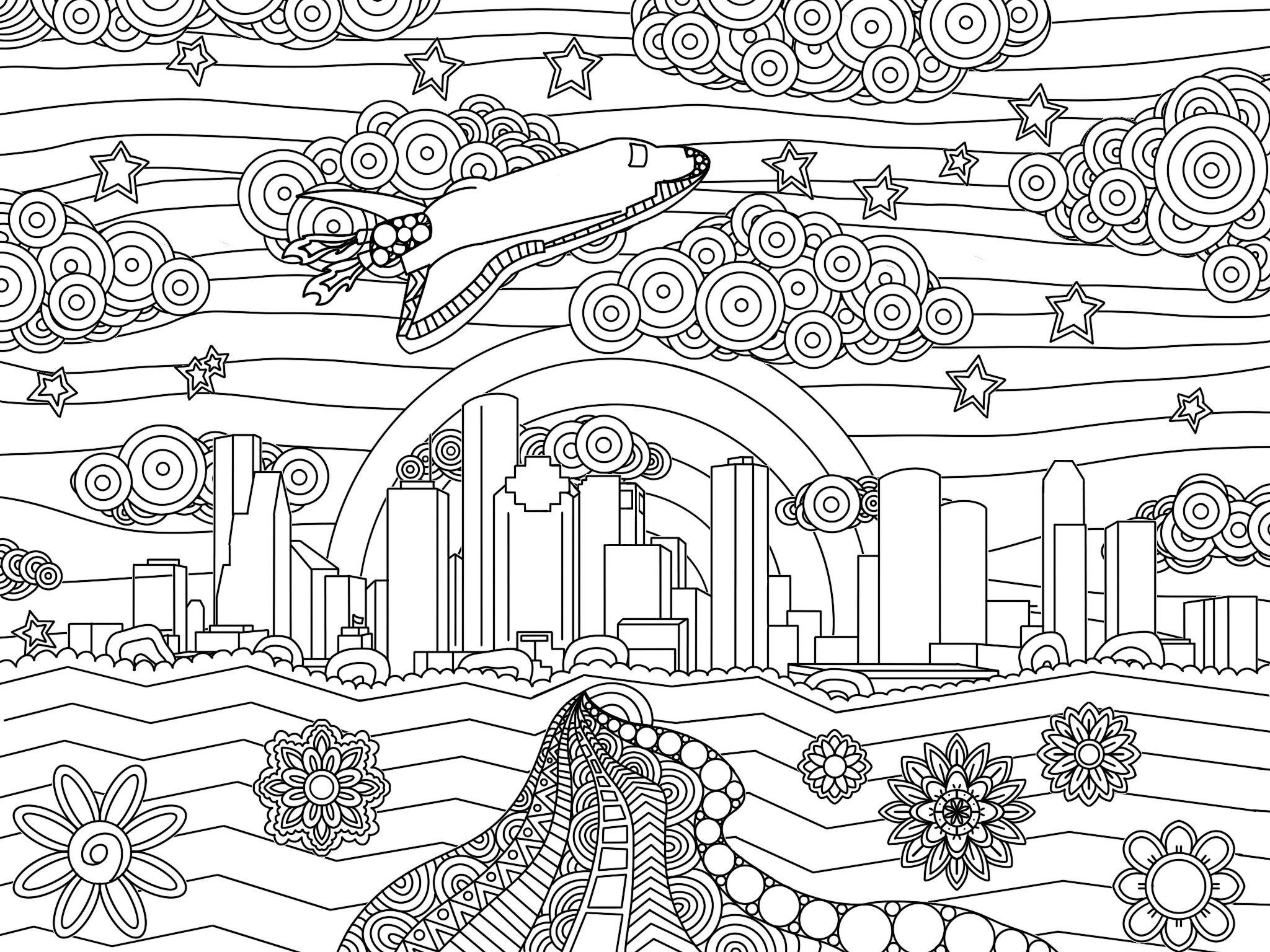
Vivid Make An Image A Coloring Page View Art
Discover an amazing make an image a coloring page background image, ideal for personalizing your devices with vibrant colors and intricate designs.
Download these make an image a coloring page wallpapers for free and use them on your desktop or mobile devices.